
Category: Survey Software

Research Technologies for Teaching and Learning

Research Technologies for Teaching and Learning

As we begin a new semester, it’s a good time to remind you of the academic research technologies available to faculty, students, and staff in the Loyola community. The Learning Technologies and Innovation group supports a suite of applications to enhance teaching, learning, and research. These tools can be used for quantitative data analysis, qualitative data analysis (NVivo), and survey administration (Qualtrics). Our team is available for support, consultation, and limited training. 

How can I schedule a consultation?

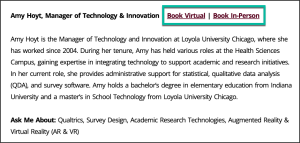
Schedule a virtual or in-person consultation from our LTI Directory page. On this page, you’ll find a list of all our team members, each with an ‘Ask Me About’ section. Use this section to determine who can best facilitate your request. Once you have identified an expert, use the Book Virtual or Book In-Person options to find a mutually convenient time to meet.
How can I request software installations on my personal device?

Many of our software packages can be installed on personal devices, including SPSS Statistics, NVivo, STATA, and SAS. To find more information about the request process for each application, view the corresponding page for the software on the Academic Research Technologies webpage. If the software is available for download, you can complete and submit a self-service request form to the LUC Service Desk. Once your request is received and processed, you will receive access to the necessary files to download the software.

How can I request help with a Qualtrics project?

Qualtrics at Loyola is a campus-wide, web-based survey platform that students, faculty, and staff can use to create, distribute, and analyze online surveys for university-related research, assessment, and academic projects.

As you work with Qualtrics, the LTI team can help with:

  • Designing effective surveys that align with research goals.
  • Setting up distribution methods and sampling strategies.
  • Configuring logic, branching, and advanced question types.
  • Managing data collection and export.

You can schedule a consultation to discuss any of the above areas, or, for more in-depth projects or if you would like our team to create your survey or set up the distribution, submit a Qualtrics Project Request form.

Dress Up Your Qualtrics Survey: Tips for Creating Engaging and Attractive Surveys

Dress Up Your Qualtrics Survey: Tips for Creating Engaging and Attractive Surveys

Creating a survey in Qualtrics is easy but making it visually appealing and engaging takes a bit of extra effort. A well-designed survey can significantly boost response rates and ensure that participants have a positive experience while providing the data you need. Here are some tips on how to dress up your Qualtrics survey to make it stand out. 

  1. Start with a Clean Layout

A clean, organized layout is the foundation of a good survey. Here’s how to achieve that: 

  • Keep It Simple: Avoid clutter by limiting the number of questions per page. Group related questions together and use white space to make the survey easier to read. 
  • Consistent Formatting: Use consistent fonts, sizes, and colors throughout the survey. This helps create a cohesive look and makes the survey feel more professional. 


  1. Use Custom Themes and Branding

Qualtrics allows you to customize the look and feel of your survey to match your brand or project theme. Check out the UMC Brand Identity website for Loyola-specific branding guidelines. 

  • Apply Your Brand Colors: Use your brand’s color palette to create a survey that’s visually aligned with your organization. You can customize the background, buttons, and text colors to fit your brand identity. 
  • Add Your Logo: Including your logo at the top of the survey helps reinforce your brand and adds a professional touch. 
  • Survey Themes: Qualtrics provides several built-in themes that you can edit to create your own. Schedule a consultation with the ITRS team to discuss a custom theme for your department.  


  1. Use Engaging Visuals

Incorporating visuals can make your survey more engaging and easier to understand. 

  • Images: Use images to break up text, illustrate questions, or make your survey more visually appealing. For example, you can include images in multiple-choice questions to help respondents visualize their options. 
  • Icons and Illustrations: Simple icons or illustrations can make your survey feel modern and can help guide respondents through different sections. 
  • Embedded Videos: If appropriate, include short videos to explain concepts, provide instructions, or introduce your survey. Just ensure that videos are short and directly related to the content. 


  1. Use Interactive Question Types

Qualtrics offers a variety of question types that can make your survey more interactive and engaging. 

  • Slider Scales: Instead of traditional rating scales, use sliders to make rating questions more interactive. 
  • Graphic Rating Scales: Incorporate images into your rating scales, like stars or smiley faces, to make the process more intuitive and fun. 
  • Hot Spot: Solicit feedback about an image with predefined regions available for selection.  


  1. Personalize the Survey Experience

Personalization can make respondents feel more connected to the survey, increasing their likelihood of completing it. 

  • Piped Text: Use piped text to personalize questions based on previous responses. For example, if a respondent indicates they live in Chicago, you can include their location in subsequent questions: “As a resident of Chicago, how do you feel about…?” 
  • Conditional Logic: Use conditional logic (display logic) to show or hide questions based on previous answers, making the survey experience more relevant to each respondent. 


  1. Optimize for Mobile

Many respondents will complete your survey on a mobile device, so it’s crucial to optimize for smaller screens. 

  • Responsive Design: Ensure your survey is fully responsive, so it looks great on both desktop and mobile devices. 
  • Short Questions: Keep questions short and to the point to avoid overwhelming mobile users. 
  • Touch-Friendly Elements: Use large, touch-friendly buttons and controls to make it easy for respondents to select answers on mobile devices. 


  1. Test Your Survey Design

Before sending out your survey, test it thoroughly to ensure everything looks and works as expected. 

  • Preview on Multiple Devices: Check how your survey appears on different devices and screen sizes. Adjust survey settings as needed to ensure a consistent experience. 
  • Gather Feedback: If possible, get feedback from a few colleagues or friends on the survey’s design and usability. They might catch issues or have suggestions you didn’t consider. 


Conclusion 

Dressing up your Qualtrics survey doesn’t have to be complicated, but it does require attention to detail. By focusing on layout, branding, visuals, interactivity, personalization, and mobile optimization, you can create a survey that’s not only functional but also visually appealing and engaging. A well-designed survey not only reflects well on your brand but also helps ensure you collect high-quality data from your respondents.